
01
Subtitles and captions
Clear burned-in subtitles or auto-captions before you translate, re-caption, or repost a clip. Auto handles text in the lower half of the frame without drawing anything.
Erase any on-screen text and keep the full frame
This text remover from video finds the words burned into your footage — subtitles, captions, titles, timestamps, prices, text logos — and rebuilds the scene behind them from neighboring frames. Auto clears bottom subtitles on its own; Box select reaches text anywhere in the frame.
Interactive preview


MP4, MOV, MKV, WebM, M4V or AVI · up to 1 GB · up to 2K
Settings
What to remove
Which mode should you use?
Auto
Detects and erases subtitles in the lower 50% of the frame. Cheapest and fastest, but the cleaned area can soften on a busy background.
Box select
Rebuilds the background texture behind the text, so the cleaned area keeps its detail. Draw the region yourself to reach watermarks, logos, or titles anywhere in the frame.
Every task is also saved in your Studio history
A text remover from video is an AI tool that erases text burned into a video's picture and reconstructs the pixels behind it. Because the text is part of every frame, it cannot be switched off like a subtitle track; the remover detects it, fills the area from the frames around it, and returns a clean video you can re-edit, translate, or reuse.
At a glance
Any lettering that is part of the picture, as long as the footage is yours to edit.
Clear burned-in subtitles or auto-captions before you translate, re-caption, or repost a clip. Auto handles text in the lower half of the frame without drawing anything.
Remove opening titles, speaker name bars, and chapter labels from your own recordings so the footage can be cut into new edits.
Erase the date or time overlay that dashcams, security cameras, and older camcorders burn into the corner of the picture.
Take expired prices, discount badges, slogans, or a text logo off product and ad videos so the same footage works for the next campaign.
Auto clears ordinary bottom subtitles for 1 credit per second, Box select reaches text anywhere in the frame for 3, billing follows the real clip length, and your files are deleted after 30 days.
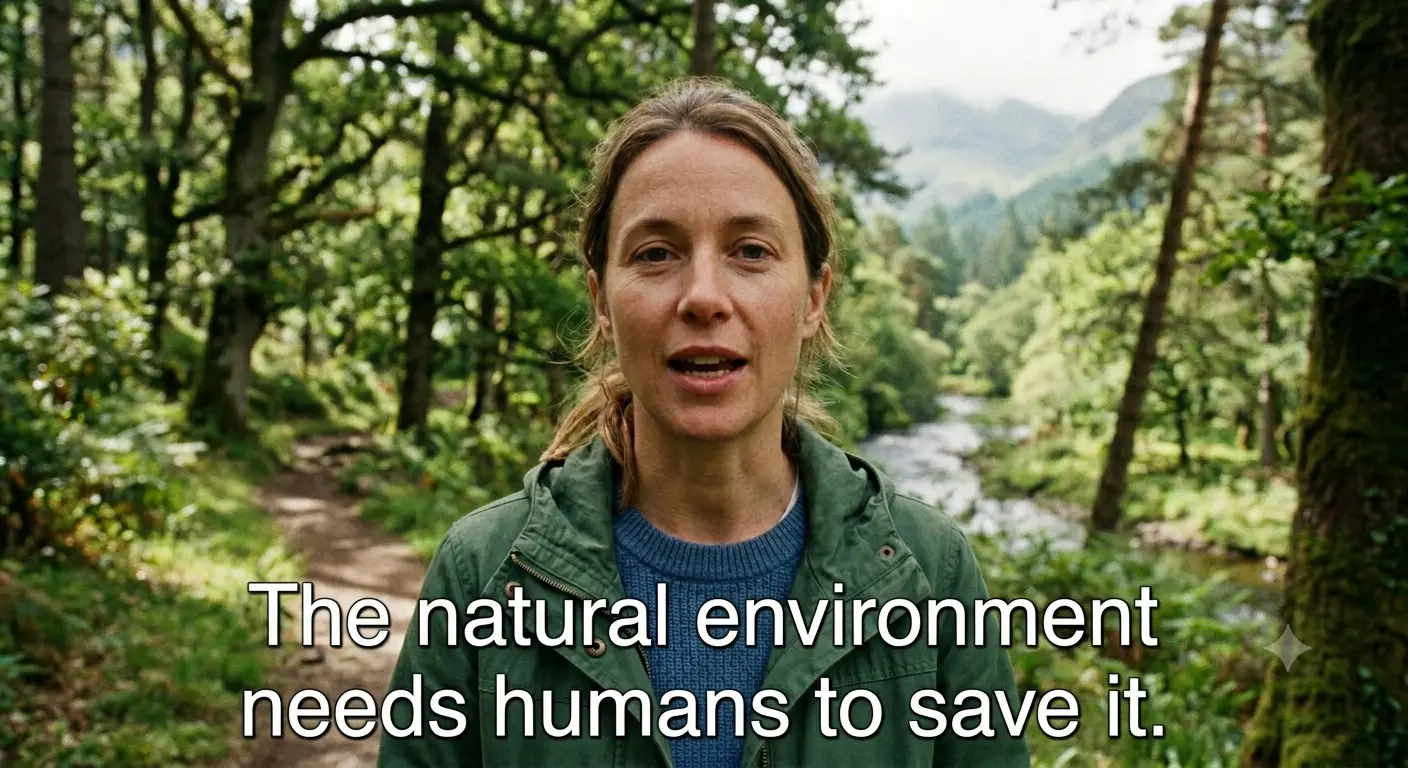

01
The model reads the frames before and after the text and reconstructs the motion, texture, and lighting it covered. Outlined, shadowed, and boxed lettering comes off without a smudged patch or a black bar.


02
The text remover from video bills Auto at 1 credit per second of actual video and never rounds up to a full minute. Uploads of up to 1 GB and 2K are kept for 30 days so you can download the result, then deleted — and never used for training.
Which mode fits your text, when the result will be clean, and when you should not remove the text at all.
If the text can be switched off — a subtitle track, an SRT file, or a title layer in your editor's project — remove it there; no AI is needed. A text remover from video is for text that is part of the exported picture.
Auto finds ordinary subtitles in the lower half of the frame on its own. Titles, timestamps, corner logos, and text in the middle or top of the frame need Box select: draw a box slightly larger than the text.
A box covers the same area for the whole clip, so draw it over the full path of text that slides or grows, or split the video and process each part. Large text over faces or hands is the hardest to rebuild.
Only use the text remover from video on footage you own or are authorized to edit. Do not erase another creator's watermark, credit, or attribution to repost their work.
Choose an MP4, MOV, MKV or WebM file up to 1 GB and 2K resolution. The workspace reads the duration and dimensions in your browser before anything is uploaded.
Auto is on by default and clears subtitles in the lower half of the frame. For titles, timestamps, logos, or text elsewhere, switch to Box select and drag a box over each area.
The model analyzes the frames around the text, removes it, and reconstructs what was behind it.
Compare before and after, watching fast motion and anything passing under the erased area, then download the clean MP4.
Many per-minute services bill each started minute as a complete minute. Subtitle Remover uses the video's actual duration in seconds — a good fit for short clips, where per-minute rounding wastes the most.
Billing unit
Subtitle RemoverActual video seconds
Typical per-minute providersEach started minute
20-second clip
Subtitle Remover20 credits with Auto
Typical per-minute providersBilled as 1 full minute — 40 unused seconds
90-second video
Subtitle Remover90 credits with Auto
Typical per-minute providersBilled as 2 full minutes — 30 unused seconds
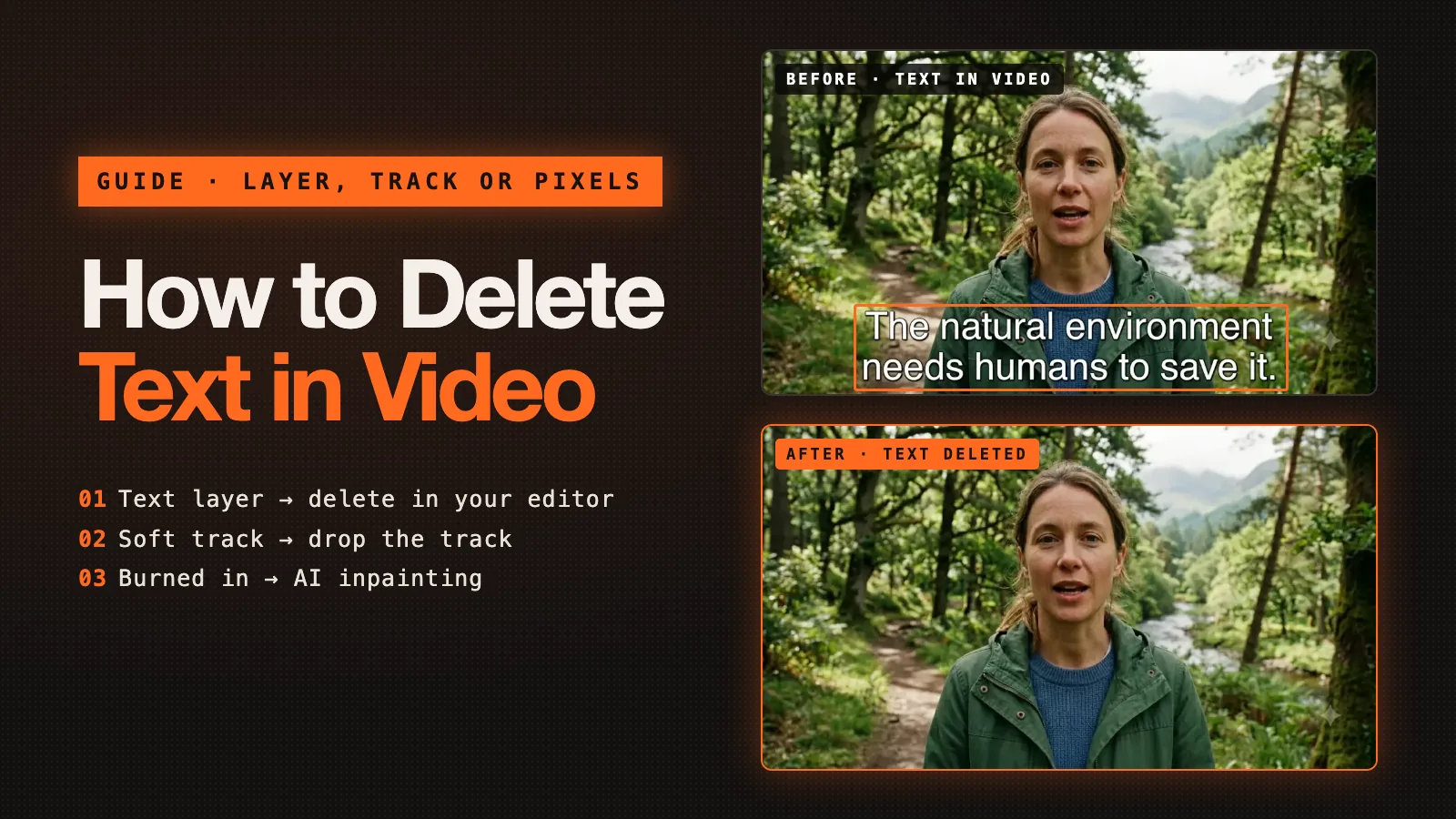
How to delete text in video in iMovie, Premiere Pro, Resolve, Canva or CapCut, how to drop a subtitle track, and how to delete hardcoded subtitles with AI.
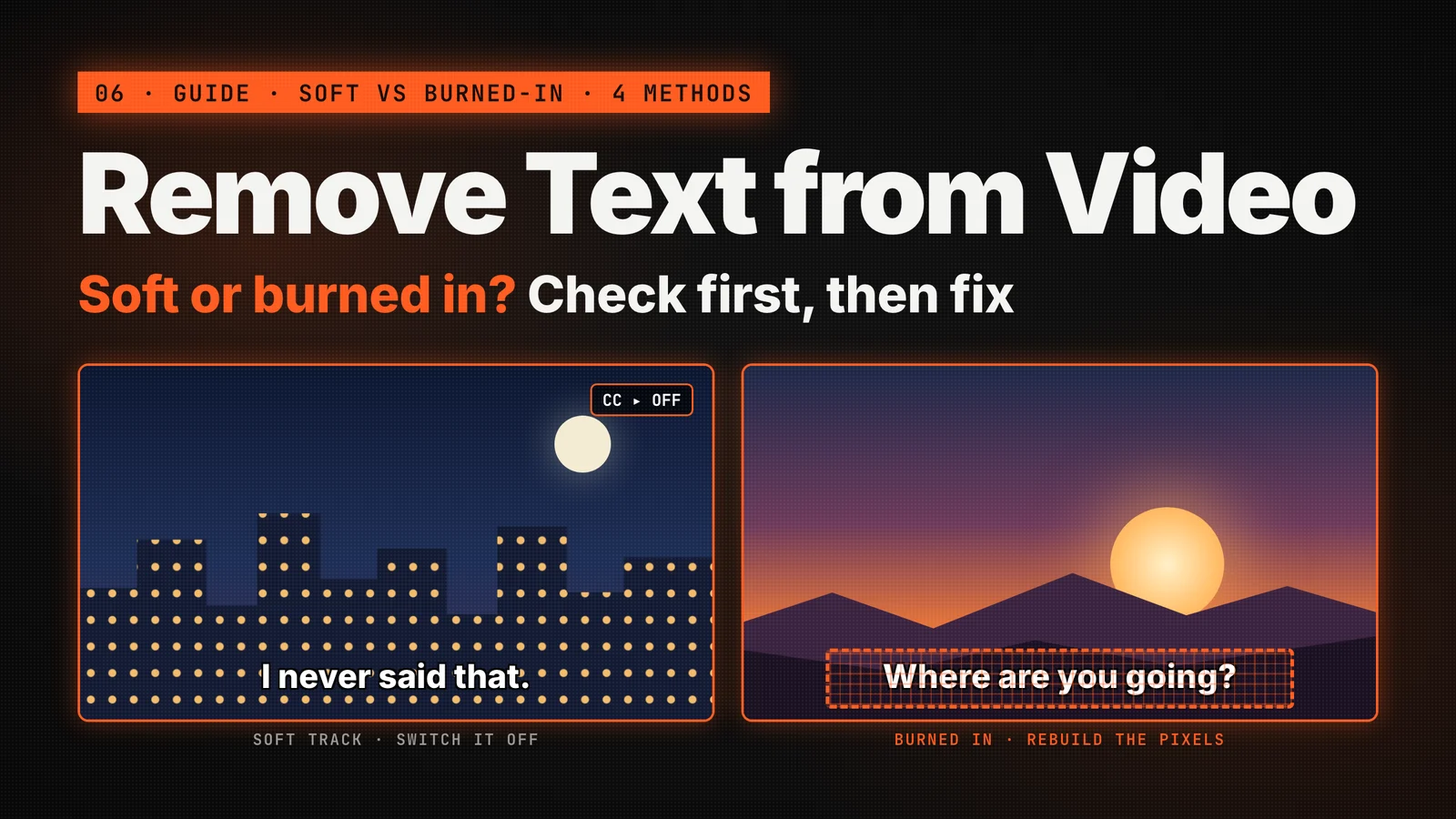
Learn how to remove text from video, including burned-in subtitles, captions, watermarks and on-screen titles. Compare crop, blur and AI inpainting, then clean a clip step by step.

How to remove text from video in CapCut: delete text clips, auto captions and stickers on desktop or mobile, and what to do when text is burned into the video.
Upload a clip, keep Auto or box the text, and download a clean version once processing finishes (usually 12–20 minutes).
By the Subtitle Remover team ·