Whether you're a content creator, video editor, or localizer, there comes a time when you need to remove text from a video — burned-in subtitles, watermarks, channel logos, or on-screen captions that are baked directly into the footage. This guide walks you through why text removal matters, how AI has transformed the process, and how to get clean, professional results in minutes.
Why You Might Need to Remove Text from Video
There are many legitimate reasons to erase text from video footage:
- Localization: You want to replace source-language subtitles with your own translated captions.
- Repurposing content: Clips sourced from other platforms often carry watermarks or logos that don't belong in your final edit.
- Archival restoration: Old broadcast recordings frequently have permanent timecode burn-ins, news tickers, or slide overlays that obscure the underlying image.
- Clean export: You want a subtitle-free master file before adding new captions in a different style or language.
In all of these cases, the challenge is the same: the text is hardcoded — it's not a separate layer you can simply toggle off. It's fused with the video pixels themselves.
The Problem with Traditional Methods
Older approaches to removing text from video were clunky and produced obvious artifacts:
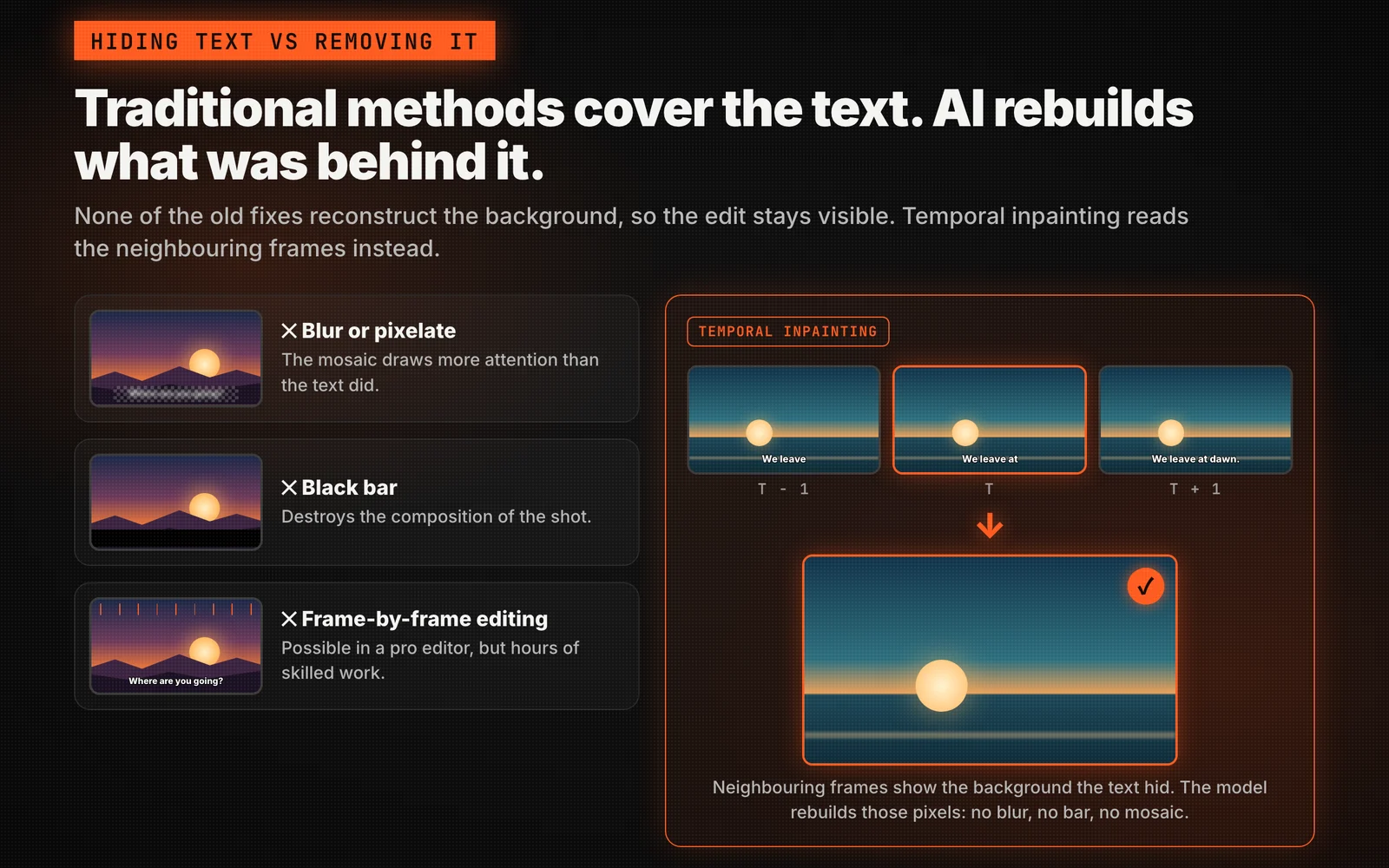
- Blurring or pixelating the text region left an ugly mosaic that drew even more attention to the area.
- Covering with a black bar was worse — it destroyed the visual composition entirely.
- Manual frame-by-frame editing was possible in professional NLEs but took enormous amounts of time and skill to get right.
None of these solutions actually reconstructed what was behind the text. They just hid it — and not very well.
How AI Changes Everything
Modern AI-powered tools use a technique called temporal inpainting to solve this problem properly. Instead of covering the text, the model analyzes the frames before and after each frame to understand what the background should look like — and then rebuilds those pixels from scratch.
The result is genuinely clean text removal: no blur, no black bars, no mosaic. The video looks as if the text was never there.
Subtitle Remover is built on exactly this approach. Its temporal inpainting model processes video frame by frame, reconstructing the real pixels behind any subtitles, captions, watermarks, or on-screen text it erases.
How to Remove Text from Video with Subtitle Remover
The process is straightforward and requires no technical expertise:
Step 1: Upload Your Clip
Drag and drop your MP4, MOV, or MKV file into the uploader. Subtitle Remover accepts input up to 2K resolution and file sizes up to 1 GB. The tool automatically reads the duration and resolution.
Step 2: Choose Auto-Detect or Manual Selection
You have two options:
- Auto-detect: OCR technology automatically identifies and locates subtitles or captions at the bottom of the frame — ideal for the majority of videos with standard subtitle placement.
- Manual boxes: Draw selection boxes around any specific region you want erased — useful for watermarks, logos, corner timestamps, or text placed anywhere on screen.
You can combine both methods in a single job for full control.
Step 3: Let the AI Rebuild the Frames
Once you confirm the regions, Subtitle Remover's AI goes to work. The temporal inpainting model cleans every frame, reconstructing the background behind the erased text. Processing is billed per second of video, keeping costs proportional to the actual work done.
Step 4: Download the Clean Video
When processing is complete, export a clean 1080p MP4. Your files are stored securely for 30 days and then automatically deleted — Subtitle Remover never uses your videos for model training.
Key Features at a Glance
| Feature | Details |
|---|---|
| Auto subtitle detection | OCR finds bottom-screen captions in one click |
| Manual region erase | Draw boxes for precise control |
| AI pixel reconstruction | Temporal inpainting — no blur or black bars |
| Supported languages | 30+ languages including Chinese and English |
| Max input resolution | 2K |
| Max output resolution | 1080p |
| File size limit | Up to 1 GB |
| Privacy | 30-day auto-delete, never trained on your videos |
Common Use Cases
Video Editors and Localizers
Strip source-language subtitles before adding your own translations. The clean reconstruction means your new captions sit on a pristine background, not layered over a blurry patch.
YouTubers and Content Creators
Repurpose clips without on-screen text ruining the frame composition. Remove watermarks from stock footage or platform-specific overlays before re-editing.
Course Creators and Educators
Clean up legacy lecture recordings with baked-in slide overlays, lower thirds, or outdated branding using manual selection boxes for surgical precision.
Archive Specialists
Restore old broadcasts with permanent timecode burn-ins or news tickers. Temporal inpainting reconstructs the underlying picture far better than any single-frame approach.
Marketers
Handle high volumes of short-form clips at scale — auto-detect handles the majority automatically, with manual boxes for edge cases.
Frequently Asked Questions
Can I remove subtitles from any video format?
Yes. Subtitle Remover accepts MP4, MOV, and MKV files. Output is a clean MP4 at up to 1080p.
Does it work on Chinese subtitles?
Absolutely. The tool supports 30+ languages including both Chinese and English burned-in subtitles.
What happens if the text is in an unusual position?
Use manual box selection to draw a region around any on-screen text, regardless of where it appears — corners, center, top bar, or anywhere else.
How long does processing take?
Most clips finish within minutes. Processing time depends on video length and resolution.
Is my video kept private?
Yes. Files are automatically deleted after 30 days, and Subtitle Remover does not use uploaded videos for AI training.
Conclusion
Removing text from video used to mean accepting ugly artifacts or spending hours on manual frame editing. AI-powered temporal inpainting has changed that entirely. Tools like Subtitle Remover make it possible to erase hardcoded subtitles, watermarks, captions, and any on-screen text cleanly and quickly — reconstructing the real pixels behind the text so the result looks completely natural.
If you need to remove text from video, upload your clip to Subtitle Remover and get a clean, professional result in minutes.