If you've ever tried to strip hard-coded captions off a clip — to re-subtitle it in another language, repurpose it for a different platform, or just get rid of an old watermark — you already know the honest answer to "how do you remove subtitles": it depends entirely on what tool you use, because most tools don't actually remove anything. They just hide it.
This guide walks through the methods people commonly reach for, why they usually leave a visible scar on the frame, and how an AI-based approach — the one behind Subtitle Remover — actually reconstructs the picture instead of covering it up.
Why "Removing" Subtitles Is Harder Than It Sounds
Hard-coded (burned-in) subtitles aren't a separate text layer you can toggle off. They're baked directly into the video pixels, frame by frame, the same as the footage itself. That means "removing" them isn't a deletion — it's a reconstruction problem. Something has to figure out what was behind that block of text and repaint it convincingly, across every single frame the subtitle appears in.
That distinction is exactly why so many of the "quick fixes" people try end up looking worse than the subtitle did in the first place.
Common Ways People Try to Remove Subtitles
1. Cropping or cutting out the subtitle area
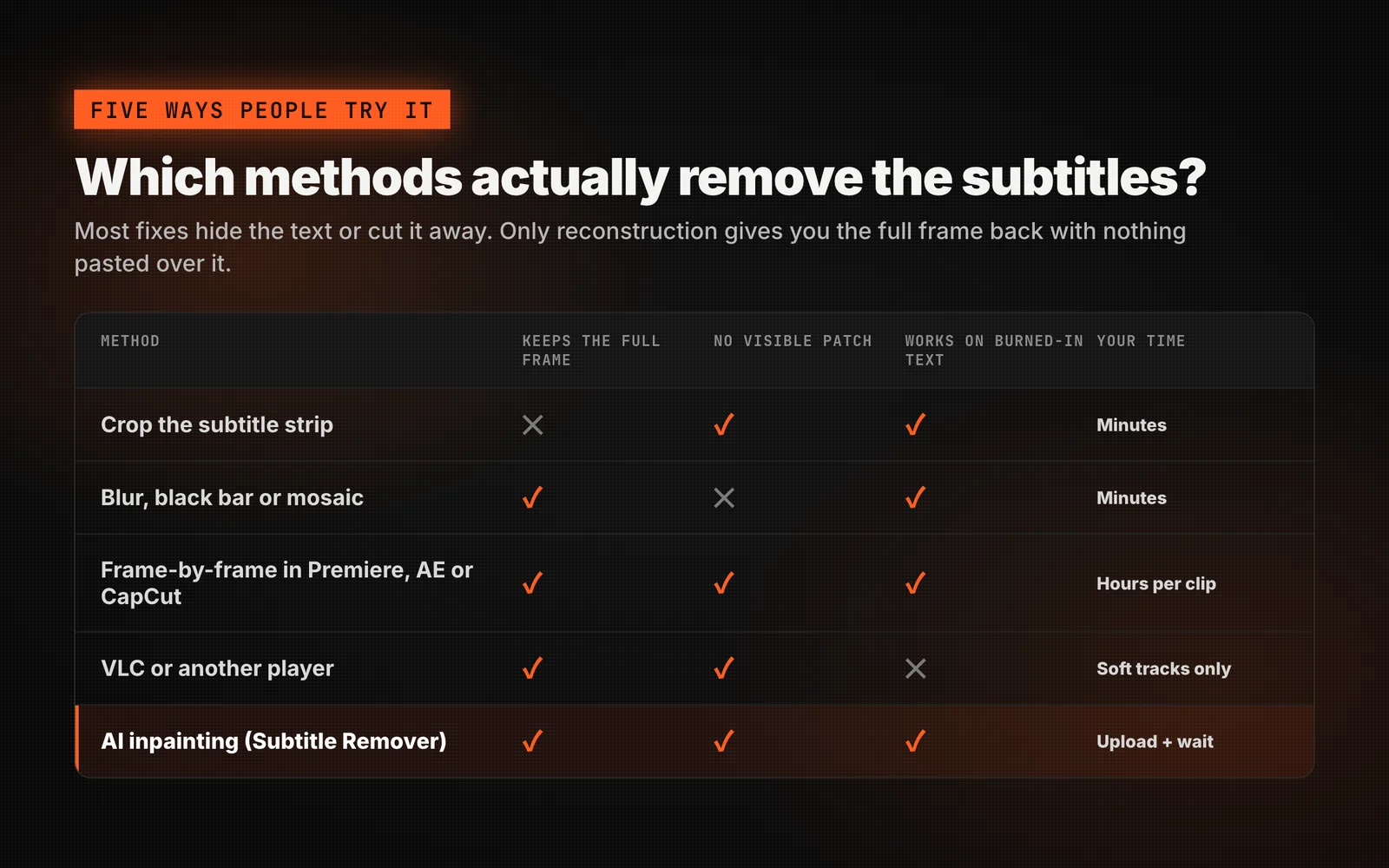
Cropping the bottom of the frame removes the subtitle, but it also removes part of your video — usually people's feet, a lower-third, or important picture content. It works only if the subtitle sits in a strip you can afford to lose entirely.
2. Blurring, blacking out, or mosaicking the text
This is what most free online "subtitle removers" and basic video editors do: detect roughly where the text is, then slap a blur, a solid bar, or a mosaic patch over it. It's fast, but it's not removal — it's a cover-up. Viewers can immediately tell something was edited out, and the patch draws more attention than the original caption did.
3. Manually editing frame by frame in Premiere Pro, After Effects, or CapCut
Professional editors sometimes clone-stamp or hand-paint over subtitles frame by frame. It can look genuinely clean, but it's brutally slow — a two-minute clip can take hours — and it doesn't scale if you're processing a whole season of episodes or a batch of short-drama clips. CapCut in particular has no built-in AI subtitle-erasing feature; at best you can crop, cover, or paint over the area manually.
4. Media players like VLC
VLC is a player, not an editor. It can toggle a soft subtitle track on or off if the subtitles are a separate file or metadata stream, but it has no way to alter the actual video pixels — so it can't touch a caption that's burned directly into the picture.
None of these approaches solve the underlying problem: something needs to know what the video looked like before the text was there, and repaint accordingly. That's a job for AI, not a blur filter or a crop tool.
The Better Answer: AI-Powered Removal with Subtitle Remover
Subtitle Remover takes a fundamentally different approach, built around a temporal inpainting model. Instead of covering the subtitle, it looks at the frames before and after the text appears, works out what pixels should logically be there, and rebuilds them. The result is a frame that looks like the text was never there — no blur, no black bar, no mosaic.
As the product describes its own approach: the model "sees what's behind the text" by looking at neighboring frames to rebuild the missing pixels, rather than applying a single-frame blur or mosaic. That's the core difference between real subtitle removal and the cover-up methods above.
What Subtitle Remover Actually Does
Auto-detect or manual boxes
Built-in OCR can automatically find captions sitting at the bottom of the frame for one-click cleanup, or you can draw your own boxes for surgical control over exactly what gets erased — subtitles, a channel watermark, a logo, or an old timecode burn-in.
Real pixel reconstruction, not a filter
Because the model reasons across frames before and after the subtitle rather than editing a single frame in isolation, the rebuilt area holds up under motion instead of flickering or smearing the way single-frame blur tools do.
Handles more than subtitles
The same erase-and-rebuild pipeline cleans up channel watermarks, station logos, and other burned-in overlays — useful for archivists restoring old broadcasts or creators repurposing clips that carry someone else's branding.
Multi-language support
The tool supports removal of burned-in captions across more than 30 languages, including Chinese and English hard-coded subtitles.
Works entirely in the browser
Source video up to 2K resolution, export a clean MP4 up to 1080p. No local install, no GPU to configure, no software to learn — everything happens through a simple upload-and-download flow.
How to Remove Subtitles with Subtitle Remover, Step by Step
- Upload your clip. Drag and drop an MP4, MOV, or MKV — the tool reads duration and resolution automatically. Input can be up to 2K, though output tops out at 1080p.
- Choose auto-detect or manual boxes. Auto works well for standard bottom-of-frame captions; manual boxes give you precise control for watermarks, logos, or subtitles in unusual positions.
- Let the AI rebuild the frame. The temporal inpainting model processes every frame and reconstructs the pixels behind the text.
- Download your clean video. You get a subtitle-free MP4 up to 1080p, typically in minutes. Files stay in storage for 30 days, then auto-delete.
Pricing: What It Costs to Remove Subtitles
Subtitle Remover bills by processing time rather than locking features behind a flat fee, so you only pay for the video you actually clean. Credits are charged per second of output, and the rate depends on which mode you use:
| Removal mode | Credit rate | Roughly per minute |
|---|---|---|
| Auto subtitle removal | 1 credit/sec | ~60 credits |
| Manual region removal | 3 credits/sec | ~180 credits |
Three monthly plans cover different volumes of work:
- Basic — $5.90/mo: 3,000 credits/month (about 50 minutes of auto removal or 17 minutes of manual/fine removal), auto and manual modes included
- Standard — $19/mo: 15,000 credits/month (about 250 minutes auto / 83 minutes manual), priority processing queue, batch upload — this is the most popular plan
- Pro — $49/mo: 50,000 credits/month (about 833 minutes auto / 278 minutes manual), highest concurrency for high-volume work
Both pay-as-you-go and monthly subscription options are available, and subscribing monthly can save up to 38% compared to paying as you go. Since billing is per second of actual output, a single short clip costs a small fraction of a plan's monthly credits — there's no need to commit to a subscription just to clean up one video.
Who This Is Actually For
Video editors stripping source-language captions before adding their own translation track. Localization teams processing daily batches of short clips. YouTubers and course creators repurposing footage that has someone else's on-screen text baked in. Archivists restoring old broadcasts with permanent timecode burn-ins. Marketers who need auto-detect to handle the bulk of clips in one click, with manual boxes available for the trickier ones. If any of that sounds like your workflow, the manual clone-stamping and blur-patch methods described earlier stop being viable pretty quickly — and that's the gap Subtitle Remover is built to close. It's already been used to clean over 100,000 videos across more than 30 languages.
Frequently Asked Questions
Does blurring or covering subtitles count as removing them?
Not really — the original text is still there, just hidden under a visible patch. Anyone watching can tell the frame was edited. True removal means reconstructing what the video looked like without the text, which is what Subtitle Remover's inpainting model is built to do.
Can I remove hard-coded subtitles in CapCut?
CapCut doesn't have a dedicated AI subtitle-removal feature — you're limited to cropping, covering, or manually painting over the area, which tends to look like an edit rather than a clean frame.
Does VLC remove hardcoded subtitles?
No. VLC is a media player, not a video editor. It can only toggle separate subtitle tracks on or off — it has no ability to alter the pixels of a video that has captions burned directly into it.
What video formats and resolutions does Subtitle Remover support?
It accepts MP4, MOV, and MKV uploads up to 2K resolution, and exports a clean MP4 at up to 1080p, with files typically ready in minutes.
How much does it cost, and do credits expire?
Pricing is pay-per-second of processed output (roughly 60 credits/minute for auto removal, 180 credits/minute for manual), with monthly plans starting at $5.90. Monthly plan credits refresh each billing period and don't roll over.
Is my video kept private?
Uploaded and processed files stay in storage for 30 days and then auto-delete, and the service states it does not train on user videos.
The Bottom Line
If you only need to lose a strip of frame you don't care about, cropping works. If you're fine with a visible smudge where the caption used to be, a blur tool works. But if you actually want subtitles, watermarks, or on-screen text gone — with the original picture rebuilt underneath, not hidden — you need real AI reconstruction, not a filter.
That's the specific problem Subtitle Remover is built to solve: upload your clip, let the temporal inpainting model rebuild the frame, and download a clean, subtitle-free video in minutes.
Try Subtitle Remover now at subtitleremover.com and see what your video looks like with the subtitles genuinely gone.