I get asked this a lot: "How do I remove subtitles from a video?" My honest answer used to be "it depends" — and after spending way too many hours fighting with crop tools, blur filters, and half-working scripts, I finally understand why it depends so much. So in this guide I'm walking through exactly how I remove subtitles today, why the "easy" methods usually fail, and the AI workflow I now default to whenever the subtitles are actually burned into the video.
Why Removing Subtitles Is Actually Hard
Before I show you the steps, I want to explain something most tutorials skip: removing subtitles cleanly is not a one-click operation, and understanding why saved me a lot of frustration.
Soft subtitles vs. hard-coded subtitles
The first thing I had to figure out is which kind of subtitles I was dealing with, because the fix is completely different depending on the answer.
Soft subtitles are a separate data track — a .srt or .vtt file, or an embedded subtitle stream inside an MP4 or MKV container. They sit on top of the video and can be toggled on or off, because the video frames themselves were never touched. This is the easy case.
Hard-coded (or "burned-in") subtitles are a different problem entirely. Here, the subtitle text has been rendered directly into the pixels of every frame during export. There's no toggle, no track to disable, no metadata to strip. As far as the video file is concerned, the text is just part of the picture, the same as a person's face or a tree in the background. This is the case that actually needs a real fix, not a setting change.
Detecting where the subtitles even are, frame by frame
Even once you know you're dealing with hard-coded text, you still have to locate it precisely in every single frame. Subtitles don't always sit in the exact same spot — they drift a few pixels between frames, resize for longer lines, and sometimes jump between the bottom and top of the screen for double-language captions. A tool has to scan each frame, run OCR or pattern detection to isolate exactly where the text sits, and do this consistently across potentially thousands of frames in a single clip. Get the bounding box wrong by even a little and you either leave a ghost of the subtitle behind or erase part of the actual scene.
What happens after the text is gone — this is the part people forget
Here's the step nobody thinks about until they try it: once you've identified where the subtitle pixels are, you can't just delete them. There has to be a background there — you removed the text, but the video still needs something to show in that space. This is where inpainting comes in: an AI model looks at the frames before and after the subtitle to figure out what was likely behind the text (a wall, someone's shirt, a moving hand) and reconstructs it, frame by frame, so the final video looks like the subtitles were never there in the first place. Do this badly and you get a smudge, a flicker, or a warped patch that's honestly more distracting than the subtitle was.
Fonts, positions, and backgrounds never stay the same
Subtitles vary wildly across sources: white text with a black outline, yellow text with no outline, semi-transparent boxes, different fonts, different placements depending on the platform the video came from. A method tuned for one style of caption often falls apart on another, which is why generic "remove text" filters tend to work inconsistently from clip to clip.
Why cropping, blurring, and blocking don't really solve it
The traditional fixes people reach for first all trade one problem for another:
Cropping the bottom of the frame cuts off part of your actual video, and it ruins your aspect ratio.
Blurring or pixelating the subtitle area still leaves a visible smear where the text was — anyone watching knows something was removed.
Covering it with a black bar or a static image looks like exactly what it is: a patch slapped over the video.
None of these actually reconstruct the scene. They hide the fact that text was there instead of restoring what should be there. That distinction is why I moved away from these methods entirely.
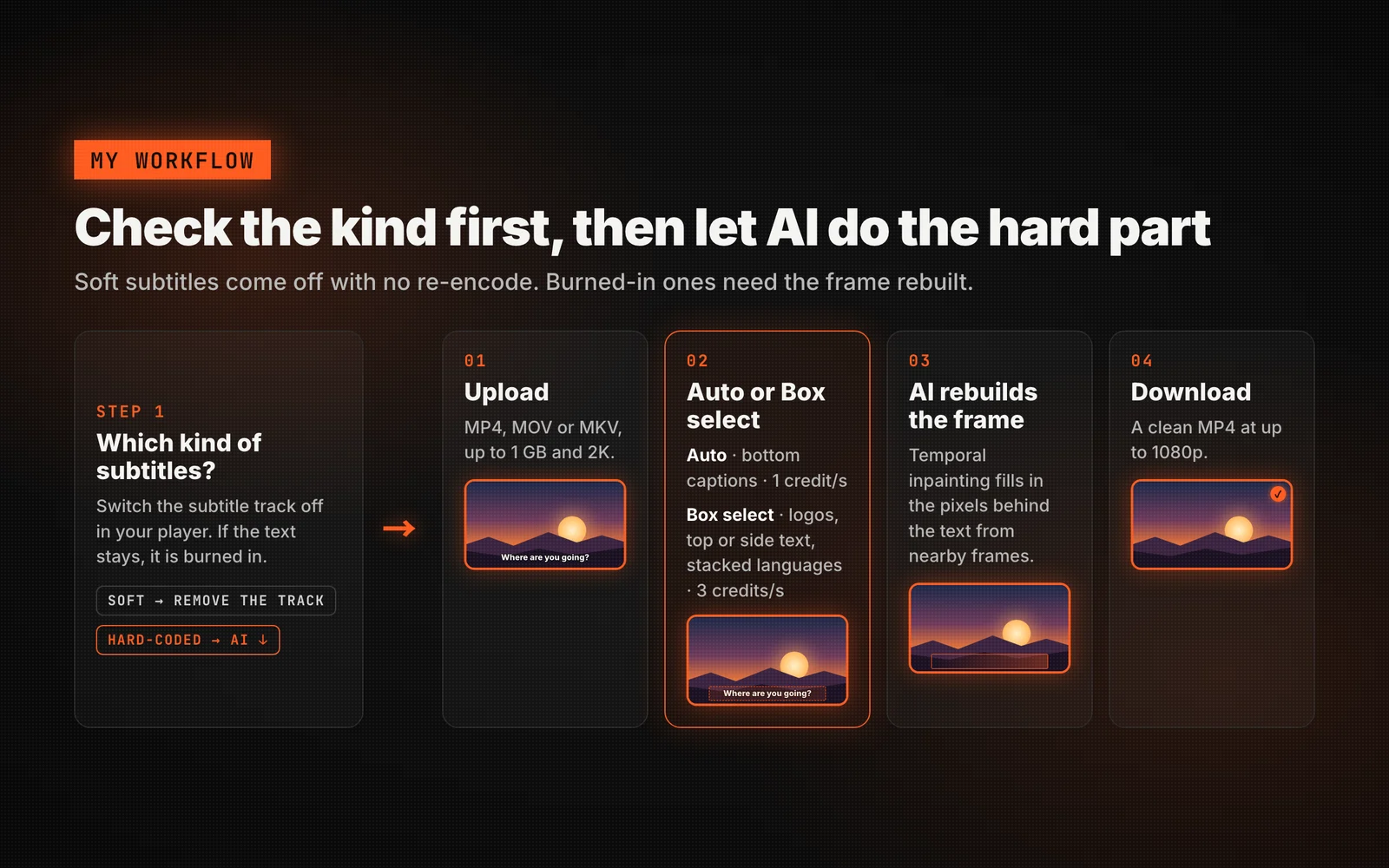
Step 1: Figure Out Which Kind of Subtitles You're Dealing With
Before doing anything, I open the video file and check:
Does the media player have a subtitle/CC toggle in its settings menu? If yes, you're dealing with soft subtitles, and you're in the easy case.
Can you turn the subtitles off, but they're still visible? Or is there no toggle at all? Then the subtitles are hard-coded into the picture, and you'll need an AI-based tool to actually remove them.
Step 2: Removing Soft Subtitles (When You're Lucky)
If your subtitles are a separate track, this part takes seconds:
In VLC, Netflix, or most streaming and media players, go to the subtitle/audio track menu and select "None" or "Off."
If you're editing the file itself, open it in a video editor or a tool like FFmpeg and either delete the subtitle stream or export without muxing it back in.
For files with an external .srt sitting next to the video, just don't load that file, or delete/rename it so your player doesn't pick it up automatically.
That's it — no re-rendering, no quality loss, because the video frames were never altered.
Step 3: Removing Hard-Coded Subtitles With AI
This is the case I run into most often, and it's the reason I switched to Subtitle Remover instead of messing with crop and blur tricks. Given everything I just explained about detection and inpainting, I wanted a tool actually built around that problem — one that reconstructs the frame instead of hiding it.
Here's exactly how I use it:
1. Upload the clip
I drag my MP4, MOV, or MKV file into Subtitle Remover. It reads the duration and resolution automatically — it accepts input up to 2K resolution and files up to 1GB.
2. Choose auto-detect or manual boxes
For standard bottom-of-screen captions, I let the built-in OCR auto-detect the subtitle region and erase it in one click. If I'm dealing with a watermark, a logo, or subtitles in an unusual spot (top of frame, side text, multiple languages stacked), I switch to manual mode and draw a box around exactly what I want gone. This flexibility matters because, as I mentioned above, subtitle position and style vary so much from source to source.
3. Let the AI rebuild the frame
This is the step that actually solves the hard part. Subtitle Remover runs a temporal inpainting model that looks at surrounding frames to reconstruct the pixels that were hidden behind the text — not a blur, not a black bar, an actual rebuilt background. That's what makes the output look like the subtitles were never burned in to begin with.
4. Download the clean file
I export a subtitle-free MP4 at up to 1080p. Processing runs in the background: a typical clip takes about 12–20 minutes, and I don't need to keep the page open. Files stay in storage for 30 days before they're auto-deleted, and the site states videos aren't used to train models — which matters if you're working with client footage.
I've used this for everything from stripping source-language captions before adding my own translation, to cleaning up old lecture recordings with baked-in slide overlays, to removing channel watermarks before repurposing a clip.
Which Plan Do I Need? (Credits Explained)
Subtitle Remover bills by processing time, using credits, and the rate depends on which removal mode you use:
Auto subtitle removal costs about 1 credit per second (roughly 60 credits per minute) — this is what I use for standard bottom-of-frame captions.
Manual region removal costs about 3 credits per second (roughly 180 credits per minute), since you're getting precise, surgical control over exactly what gets erased.
The three monthly plans, billed per month with credits that reset each period:
Basic ($5.90/mo) — 3,000 credits/month, good for about 50 minutes of standard auto-removal or 17 minutes of fine/manual removal. This is enough if you're only cleaning up subtitles occasionally.
Standard ($19/mo, marked "Popular") — 15,000 credits/month, about 250 minutes standard or 83 minutes fine, plus priority processing and batch upload. This is where I'd land if I'm doing this weekly.
Pro ($49/mo) — 50,000 credits/month, about 833 minutes standard or 278 minutes fine, plus the highest concurrency for running multiple jobs at once. This is built for high-volume, professional workflows.
There's also a pay-as-you-go option if you don't want a subscription. Check the pricing page for current rates, since these details can change.
Quick Answers to Common Questions
How do I remove subtitles from a video? Check whether they're soft (a toggleable track) or hard-coded (burned into the frame) first. Soft subtitles turn off in your player's settings. Hard-coded subtitles need an AI tool like Subtitle Remover to detect and rebuild the frame.
Can I remove subtitles from a video in CapCut? CapCut can crop, cover, or blur an area, but it doesn't reconstruct what was behind the text — you'll see the seam. For a clean result on burned-in captions, I use a dedicated inpainting tool instead.
Does VLC remove hardcoded subtitles? No. VLC can only toggle a separate subtitle track on or off. If the captions are burned into the picture, VLC has no way to touch them, because there's no track to disable.
How do I remove hardcoded subtitles from MP4 files? Upload the MP4 to an AI subtitle remover, let it detect (or manually mark) the caption region, and let it reconstruct the frames underneath. That's the only approach that actually removes the text instead of covering it.
How much does subtitle removal cost? With Subtitle Remover, it's credit-based — roughly 1 credit per second for auto-detected removal and 3 credits per second for manual, with monthly plans starting at $5.90.
Do credits expire? On the monthly plans, unused credits reset each billing period and don't roll over, so it's worth matching your plan to how much footage you actually process each month.
Try It on Your Own Video
If your subtitles are hard-coded and none of the quick fixes are giving you a clean result, that's genuinely the sign you need an AI tool built for this, not a workaround. I'd rather spend two minutes uploading a clip than another hour fighting with crop and blur settings that never quite work.
Head to subtitleremover.com, upload your clip, and see the reconstructed frame for yourself before committing to a plan.