To remove text from video, first work out what kind of text it is. If the subtitles are a separate track that you can switch off in your player, you can strip that track in seconds and the picture never changes. If the text is burned into the frames (hard-coded subtitles, a caption, a watermark or a title), you have to rebuild the pixels behind it. You can crop it out, blur it, or use an AI tool that fills in the background frame by frame.
This guide is for creators, editors, localization teams and marketers who have a finished video with text they did not want on it. It explains how each method works and what it costs you in quality, then walks through cleaning a clip with Subtitle Remover.
TL;DR
- Soft subtitles (a separate track): remove the track with HandBrake or FFmpeg. There is no quality loss.
- Burned-in text (part of the image): crop, blur or cover it, or use AI inpainting to reconstruct the background.
- Best result for most clips: AI inpainting. Subtitle Remover auto-detects bottom-screen captions, or you can draw boxes around any text, logo or watermark.
- Limits in Subtitle Remover: MP4, MOV or MKV up to 1 GB, input up to 2K, clean MP4 output up to 1080p, billed per second.
Soft vs burned-in text: check this first
Text in a video shows up in one of two ways, and each needs a different fix.
Soft (embedded) subtitles are stored as their own stream inside the file, in the same way an MP4 or MKV can hold several audio tracks. Your player draws them on top of the picture. If you can turn the subtitles off in VLC or on YouTube, they are soft. Removing them never touches a single pixel.
Burned-in (hard-coded) text was drawn into the image when the video was rendered. Subtitles, captions, channel watermarks, lower-third titles and text generated by AI video models such as Seedance all fall into this group. There is no separate text layer, so no player setting can hide it. The HandBrake documentation describes the same split: a subtitle track stays switchable unless you choose to burn it into the picture.
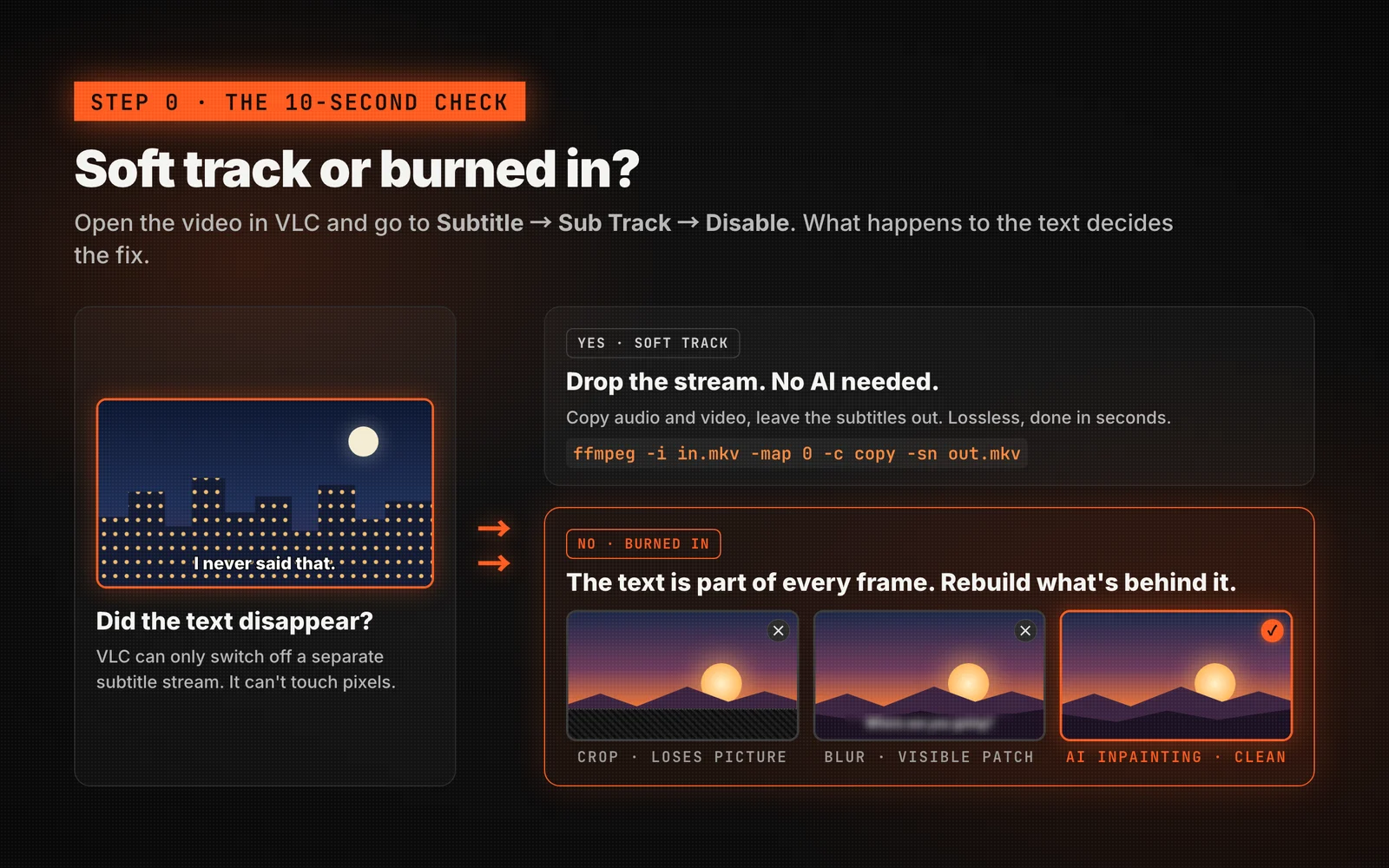
A 10-second test: open the video in VLC and look for a subtitle track under Subtitle → Sub Track. If the text disappears when you pick "Disable", it is soft. If it stays, it is burned in.
Remove soft subtitles
If the text is a soft track, you don't need an AI tool.
- HandBrake: on the Subtitles tab, remove every track before you encode.
- FFmpeg: copy the audio and video and drop the subtitle streams with
-sn:
ffmpeg -i input.mkv -map 0 -c copy -sn output.mkvBecause the video stream is copied rather than re-encoded, this finishes in seconds and the quality is unchanged. The rest of this guide covers burned-in text, which is the harder case.
Four ways to remove text from a video
| Method | How it works | Result | Good for |
|---|---|---|---|
| Crop | Cut away the strip of the frame that holds the text | Loses part of the picture and changes the aspect ratio | Text sitting in a letterbox bar |
| Blur, mosaic or box | Cover the text with a blurred patch or a solid shape | The patch stays visible and draws the eye | Quick internal drafts |
Static logo filter (FFmpeg delogo) | Interpolates the edges of a fixed rectangle | Smudgy, and only works on still, small regions | A small fixed logo on a plain background |
| AI video inpainting | Uses nearby frames to rebuild the pixels behind the text | Background, motion and lighting stay consistent | Subtitles, captions, watermarks and titles you want to publish |
Cropping and blurring are quick, but viewers can tell something was hidden. The FFmpeg delogo filter works for a tiny static logo, but it only blends a rectangle from the pixels around its edges. On a subtitle line that sits over moving faces or scenery, the result looks like a smear.
If the video is going to be published, localized or sold, use AI inpainting. It is the only one of the four methods that gives you back a usable frame.
How AI video inpainting removes text
Inpainting means filling in a missing part of an image so that it matches the area around it. Video inpainting adds time. In one frame, a subtitle hides the background, but a few frames earlier or later the camera or the subject has moved and that same background is visible. A temporal model uses those neighbouring frames to rebuild what should be there.
Subtitle Remover works in four stages:
- Detect: high-frame-rate OCR finds the subtitles, captions and on-screen text, including text that flickers or moves.
- Look around: the model reads the frames before and after each moment to see the scene without the text.
- Reconstruct: it rebuilds the hidden pixels so the background, motion and lighting stay consistent.
- Export: you download a clean MP4 with no blur, mosaic or black bar.
The difference from a blur is that the output does not show where the text used to be. You get a clean source file, not a covered-up one.
Step by step: remove text from video with Subtitle Remover
Cleaning a clip takes about a minute of your time. Processing runs in the background afterwards — a typical clip takes about 12–20 minutes.
Step 1: Upload the video
Open the Studio and drag in an MP4, MOV or MKV file up to 1 GB. Subtitle Remover reads the duration and resolution automatically. Input can be up to 2K, and the output is capped at 1080p. There is no fixed limit on video length.
Step 2: Choose a removal mode
| Mode | What it does | Best for | Rate |
|---|---|---|---|
| Standard (Auto) | Auto-detects and erases subtitles and captions | Bottom-screen subtitles, bilingual captions, short-drama dialogue | 1 credit / sec |
| Pro (Manual boxes) | You draw boxes around exactly what should go | Watermarks, logos, titles, text in unusual positions | 3 credits / sec |
Start with Standard when the text is a normal subtitle line near the bottom of the frame. Switch to Pro when the text is somewhere else, when you only want part of the on-screen text removed, or when a watermark sits in a corner.
Step 3: Draw boxes (Box select only)
Draw a box around each area of text. Keep each box a little larger than the text so that anti-aliased edges and drop shadows are included. If the text changes position during the clip, draw a box that covers every position it moves through.
Step 4: Submit and wait
Submit the task. The estimated credits are reserved when you submit, and the final charge is based on the processed duration. If processing fails, all the reserved credits are refunded. You can check progress on the History page.
Step 5: Download the clean MP4
Download the subtitle-free MP4. You can then add new subtitles, dub it into another language, or import it into your editor. Both the source and output files are deleted automatically after 30 days, and your videos are never used for training.
What does it cost? Billing is per second, so you pay only for the duration you process. A 60-second clip costs 60 credits in Auto and 180 credits in Box select. New accounts get 15 credits when they sign up, which is enough to test a 15-second clip in Auto. Full packs and plans are on the pricing page.
Tips for a cleaner result
- Upload the highest-quality file you have. Inpainting rebuilds detail from the surrounding pixels, and heavy compression artifacts give it less to work with.
- Use tight but complete boxes. A box that clips the edge of a letter leaves a ghost outline, and a box that is far too large asks the model to rebuild more than it needs to.
- Trim the clip first if only one section has text. You pay per second, so a shorter file costs less.
- Fix quality afterwards. If the source was blurry or heavily compressed to begin with, run the result through the AI Video Enhancer to sharpen details and reduce compression artifacts.
Common mistakes
- Using an AI tool on soft subtitles. If the track can be switched off, remove it with FFmpeg or HandBrake. The result is lossless and free.
- Regenerating a whole AI video to get rid of a caption. Re-rolling a Seedance or other AI-generated clip costs more and changes the shot. Removing the text keeps the take you already approved.
- Blurring text in a video meant for localization. A blurred strip under new subtitles looks like a mistake. Localizers need a clean plate.
- Removing text you don't have rights to. Removing a watermark doesn't give you permission to use the footage. Only process videos you own or are authorized to edit.
Pre-flight checklist
Copy this list and run through it before you upload:
- I checked in VLC that the text is burned in, not a soft track
- The file is MP4, MOV or MKV and under 1 GB
- I trimmed the clip to the section that has text
- I picked Standard for bottom subtitles, or Pro for logos, watermarks and titles
- In Box select, each box covers the text plus its shadow and outline
- I own the video or have permission to edit it
FAQ
Can you remove burned-in text from a video?
Yes. Burned-in text is part of the image, so it can't be switched off, but AI video inpainting can rebuild the background behind it. The model uses nearby frames where that background is visible. That produces a clean frame instead of a blurred patch, which is why it works for subtitles, captions and watermarks.
How do I remove captions from a video for free?
If the captions are a soft track, removing them is free and lossless: drop the track with HandBrake, or with FFmpeg using -sn. Burned-in captions need reconstruction. Subtitle Remover gives new accounts 15 credits, enough to test a 15-second clip in Auto before you buy anything.
Can I remove a watermark or logo from a video?
Yes, as long as you own the video or are authorized to edit it. Open Remove Watermark from Video, keep Box select, draw a box around the watermark or logo, and the model rebuilds the area frame by frame. For a tiny fixed logo on a plain background, FFmpeg's delogo filter is a free alternative, but it looks smudgy on detailed scenes.
Can CapCut remove text from a video?
CapCut can cover hard-coded text with a mosaic, blur or overlay, but it can't rebuild what is behind the text. A common workflow is to clean the clip in Subtitle Remover first and then import the subtitle-free MP4 into CapCut to add your own captions.
Will removing text lower the video quality?
The areas that were not covered by text keep their detail, and the cleaned MP4 is exported at up to 1080p. If your source is larger than that (up to 2K), it will be scaled down to 1080p. For footage that was already low quality, the AI Video Enhancer can improve clarity afterwards.
How long does it take?
Most clips finish in about 12–20 minutes, and longer videos take proportionally longer. You don't need to keep the page open: the task keeps running, and the result appears on your History page when it's done.
Conclusion
Removing text from a video starts with one check. If the text is a soft subtitle track, remove the track and you're done without any quality loss. If it is burned in, skip the blur and use AI inpainting to rebuild the frame, so the video is ready to publish, dub or re-caption.
Ready to try it? Open the Subtitle Remover Studio, upload a clip, choose Auto or Box select, and download the clean MP4 from your task list once processing finishes. For logos and watermarks, use Remove Watermark from Video.